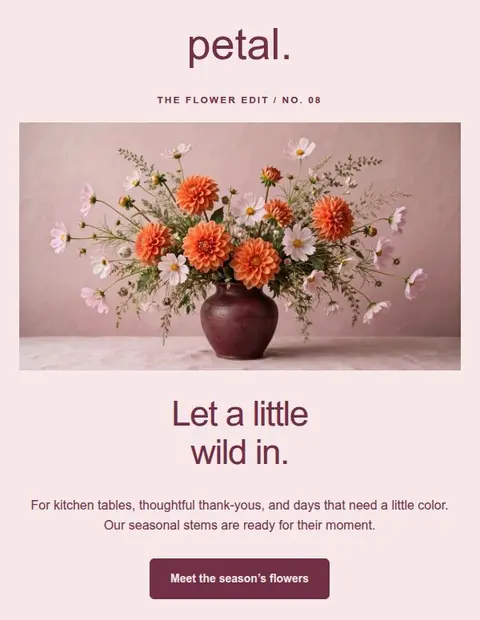
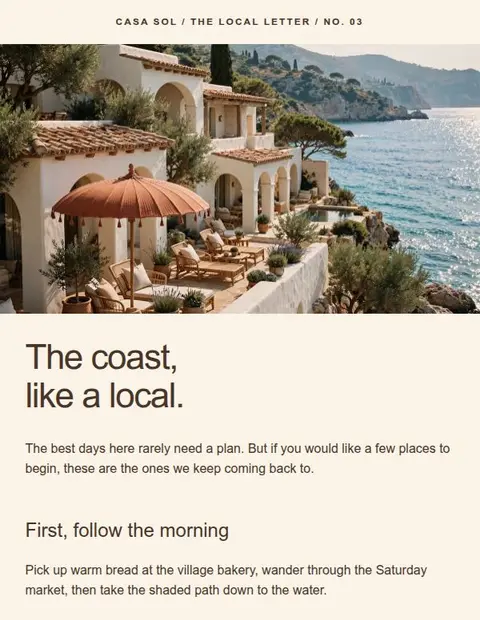
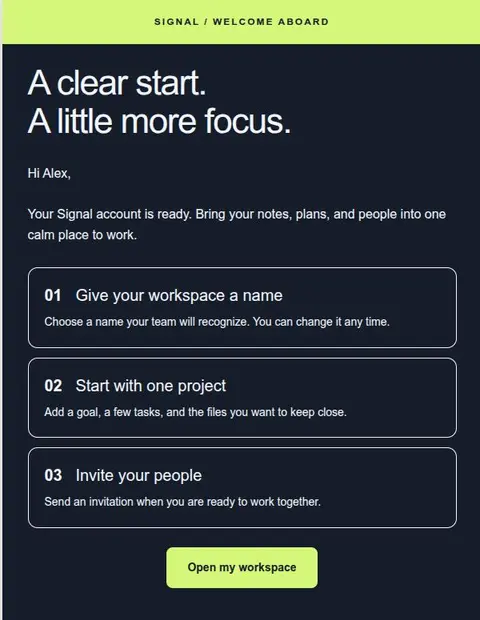
Your email usually loads pictures from the web when someone opens it. That means the image needs to be small enough to load quickly and available at an address the reader can access. Here is how to prepare it.
Choose pictures that help explain the message
Show the product you are selling, the venue you are inviting people to, or a detail that is hard to describe. For a pottery workshop, a photo of a bowl made by a beginner tells readers more than a generic desk photo.
Keep the date, price, and booking link as text in the email. Putting the whole message in one image makes it harder to read when images are hidden or the reader needs larger text.
Resize before uploading
In a 600-pixel email with 24 pixels of space on each side, a full-width image displays at 552 pixels. An image about twice that width can look sharper on high-resolution screens, but makes a larger file. Crop it first, resize it, then compress it while checking the details still look clear.
JPEG is a good starting point for photos. PNG works well for logos and graphics that need a transparent background. Lettershape also accepts WebP uploads. Test the received email because support for image formats differs between mail apps.
Keep the image address available after sending
Lettershape hosts uploaded and AI-generated images. If you use your own image link, use a public HTTPS address that opens the image directly, without a login or an expiring download link. Check it in a signed-out browser.
Keep those files on your website after the campaign. Deleting or moving them can leave a blank space in emails people open later. Cancelling a Lettershape subscription does not delete hosted images. Images already used in exports are protected from gallery deletion.
Add a short description for important images
Alt text describes an image for someone who cannot see it. Say what matters in the picture: Blue glazed bowl made in the beginner workshop. Decorative images can have empty alt text. If an image is a link, make its description explain where the link goes.
If you edit HTML, the example below sets the display width and lets the picture shrink on smaller screens. Replace the example address with your own image URL. In the visual editor, use the image controls instead.
                <img src="https://images.example.com/workshop-bowl.jpg"
  width="552" alt="Blue glazed bowl made in the beginner workshop"
  style="display:block;width:100%;max-width:552px;height:auto;border:0;">
Check the email with pictures hidden
Some mail apps hide remote images until the reader allows them. Your heading, explanation, and main link should still be visible. Alt text helps, but some inboxes display it poorly, so it cannot replace the message itself.
Replacing an image online may not update every sent email. Mail apps can keep an older copy. Use a new image address when revising a campaign; send a correction if an important detail in a sent message was wrong.
Find out why an image is missing
Open the exact image address from the export in a signed-out browser. If it fails, fix the file or its access settings. If it opens, allow remote images in the receiving app. A picture that appears after this step was blocked by the inbox.
If Lettershape stops an export because an image is unavailable, fix the image it identifies and try again. Send a fresh test after changing the file or URL.