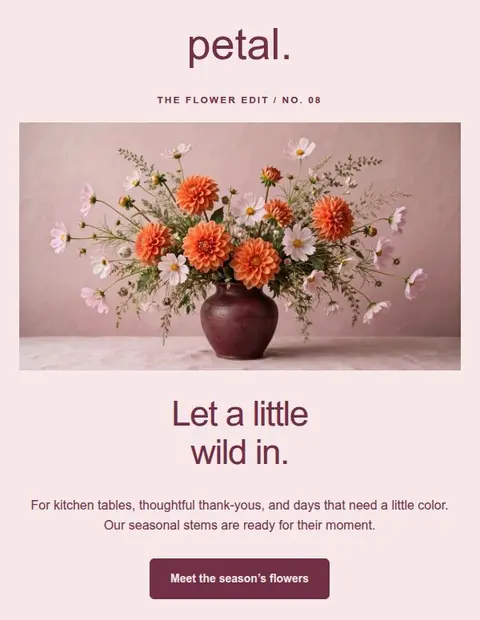
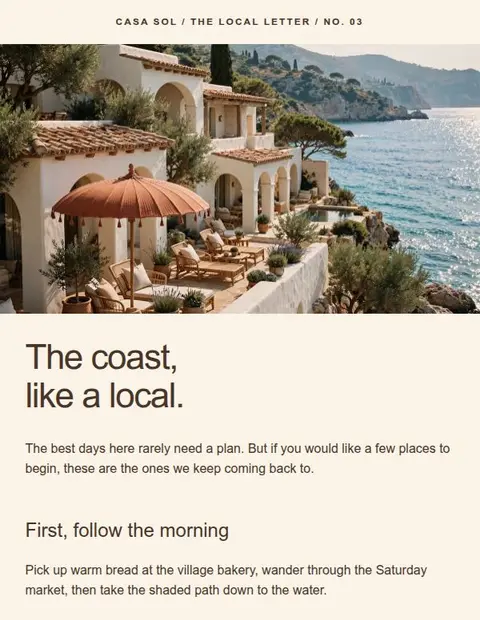
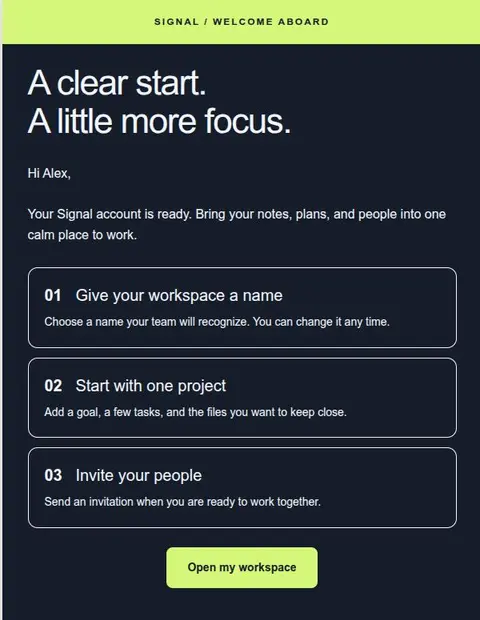
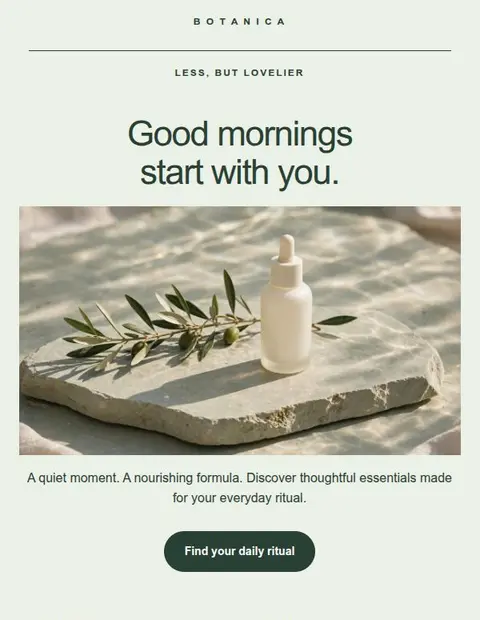
Start with formatted copy: it lets you paste your design into a new Thunderbird message. If pasting changes the layout, try downloading a message file instead. Both options are included on Lettershape Free.
Finish the design in Lettershape
Replace the example text, images, button links, and footer details. Check the phone preview, then click Save. Keep this project so you can update the design next time.
Images need public web addresses to appear in the received email. Lettershape hosts images you upload. If you use pictures from your own website, make sure their links work without signing in.
Copy and paste the formatted email
In Thunderbird, check the sending account’s Composition & Addressing settings and enable composing messages in HTML. Menu names can differ between versions. An HTML message supports images and styled text; a plain-text message does not.
In Lettershape, open Export email, choose Thunderbird, and follow the formatted-copy instructions. Allow clipboard access if your browser asks. Start a new Thunderbird message and paste normally into the body. Avoid Paste Without Formatting, which removes the layout. Add your subject separately.
If you see plain text, check the HTML setting and clipboard permission. If you see code such as <table>, you copied the HTML source instead of the formatted email.
Use a message file if pasting does not work
Download the EML file from Lettershape. This file contains your subject and email content. Open it with Thunderbird, then choose Edit as New to make an editable message. If double-clicking opens another mail app, choose Thunderbird from your computer’s Open With menu.
Check the From address, subject, and recipients. Images in this file still load from the web, so their links must stay available after sending.
Check the pasted or opened message
Read the message in Thunderbird before adding your customer addresses. An automatic signature may add a second logo or sign-off. Remove duplicates and check that buttons still open the right pages.
Make major layout changes in Lettershape, save them, and export again. That keeps your saved project up to date and avoids maintaining several different versions in draft messages.
Send a test through your usual account
Send the first message to yourself. Open the received email on a phone and in another mail app if you can. Check the received copy as well as the draft; formatting can change during sending.
- Check the sender, subject, and reply address.
- Open every link, including images and footer links.
- Check that the text fits on a phone without sideways scrolling.
- Hide remote images and confirm the message still makes sense.
Save the design for the next email
You can save the tested message as a Thunderbird template or reuse your Lettershape project. Give it a recognizable name, such as Monthly member update. Replace old dates and links each time, and check the recipient fields before sending.
Thunderbird sends through your own mail account. If you are mailing a subscriber list, use an email marketing service that manages subscriptions and unsubscribe requests. Lettershape supplies the design for either option.