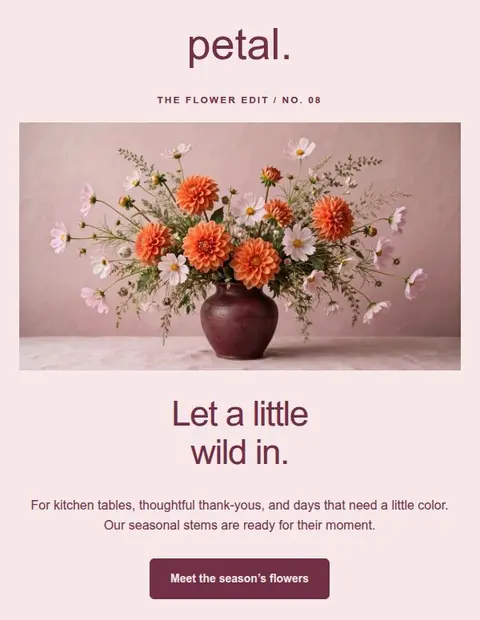
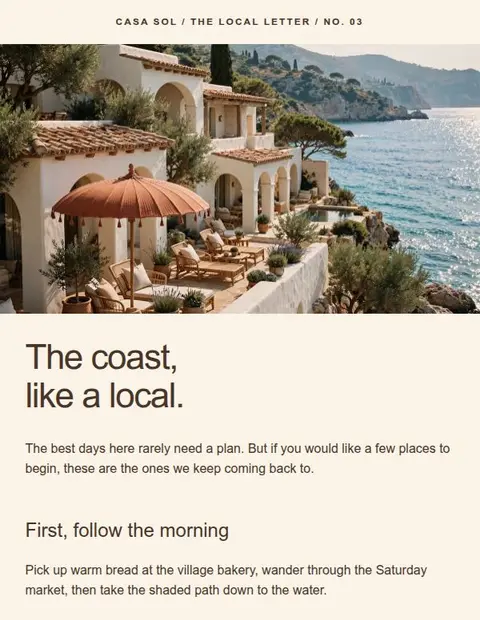
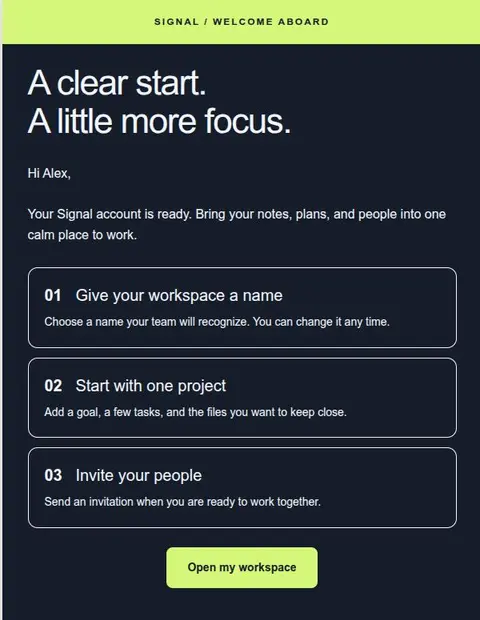
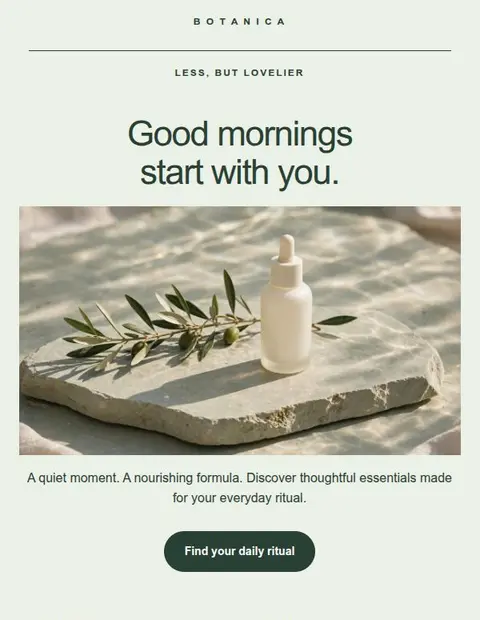
Before sending, check the message with your real content and send yourself a test. Use the sections below to catch old sample details, broken links, and layout problems in the version your readers will receive.
Check the sender and purpose
Read the subject and opening paragraph together. Someone should be able to tell who is writing and why the email matters to them.
- Use a sender name your readers recognize.
- Make the subject describe the actual message.
- Choose the correct subscriber list in your sending service.
Replace sample details and check the facts
Look for example names, prices, dates, and addresses left in the template. Compare the email with the page it links to. If an event time or offer differs, correct it before sending.
- Check amounts, currencies, dates, and time zones.
- Replace sample branding, contact details, and footer text.
- Check any customer-name fields with a test contact whose name is missing.
- Put offer conditions near the offer.
Click every link
Open links from the test email, including the logo, pictures, and footer. A working link can still lead to an old event or a private page. Check public pages while signed out.
- Make sure each button opens the page its label promises.
- Check that the help link or reply address reaches you.
- Add and test the unsubscribe link required by your sending service.
- Link to web pages for surveys and registration forms.
Read the email on a phone
Read at normal size, without zooming in or scrolling sideways. Look for cramped text, columns in the wrong order, and buttons too close together. Hide images and check that dates, offers, and the main link are still visible.
- Check for sideways scrolling or cut-off words.
- Use text that stands out against its background.
- Make sure dark mode leaves the text readable.
- Check that image links work without signing in.
Save and transfer the final design
Click Save in Lettershape after your last edit; there is no autosave. Open Export email and follow the instructions for your sending tool. If you use Mailchimp or a similar service, finish its footer and subscriber-name settings after importing.
- Save the same version you intend to send.
- Resolve any image error shown during export.
- Check the subject after importing or pasting the email.
Check the received test email
Send yourself a test through the account or service you will use for the campaign. Check the received message on a computer and phone, since a draft preview can miss changes introduced by the sending tool.
If you change a link, image, or section after testing, send a new test and check that change. Use that final version for your campaign.