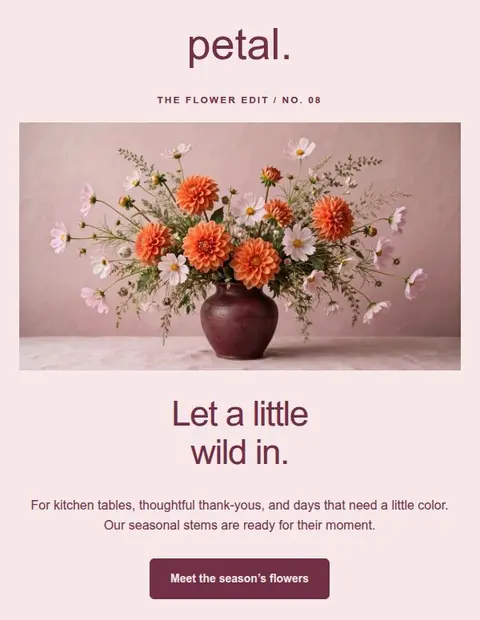
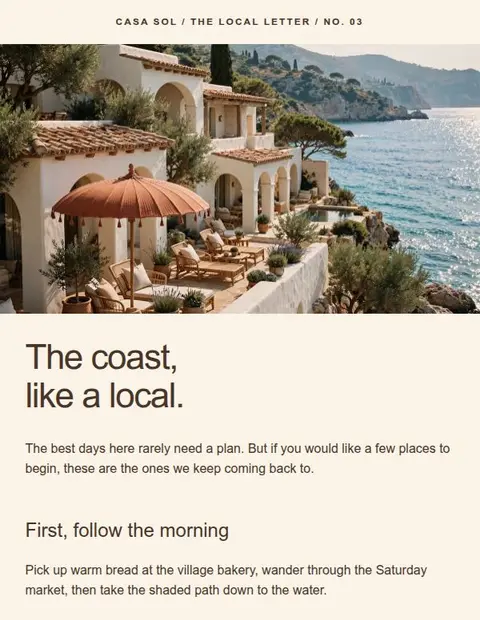
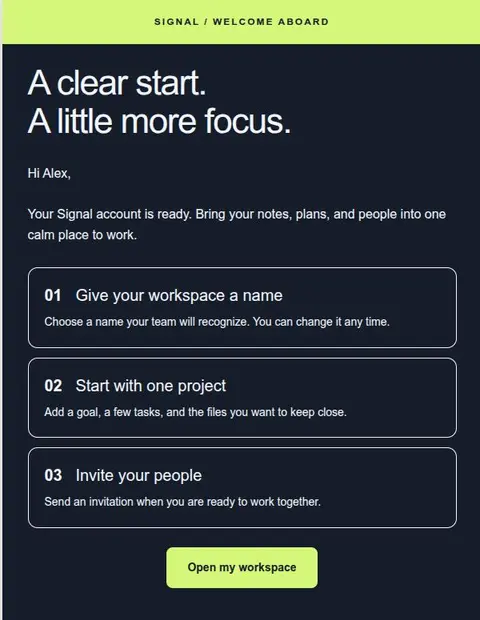
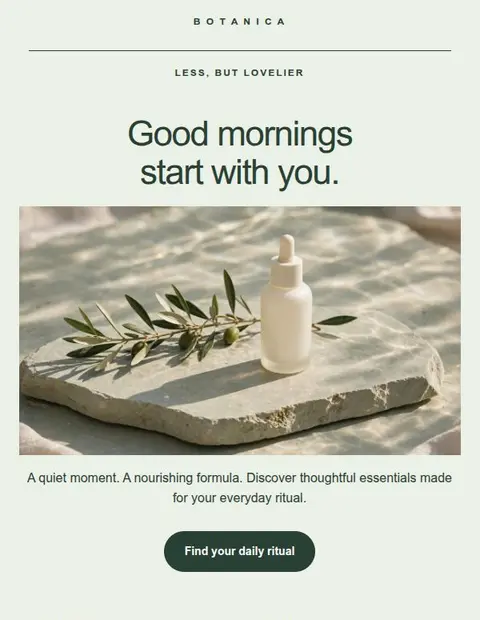
A new subscriber needs to know what they joined and what happens next. Keep your welcome email short enough to read in one sitting, with a clear first step and a way to ask for help.
Match the email to the signup
Joining a newsletter, buying a course, and creating a software account each call for a different welcome. Check what the signup page promised and confirm it in the email. A person joining a waiting list needs an update about access, rather than instructions for a product they cannot use yet.
Choose the first link before writing the headline. A course welcome could open lesson one; a newsletter could introduce a popular guide. If the reader must verify their email first, make that the main action.
Say what they will receive
Use a recognizable sender name and a specific subject, such as Welcome to Field Notes. In the first few lines, thank the person for joining and explain what they can expect.
For example: “Thanks for joining Field Notes. We send a seasonal growing guide each month. Start with our guide to choosing your first container plants.” This gives the subscriber a schedule and something to read. Change the details to match what you actually offer.
Link directly to the first step
A button labeled Read the planting guide tells the reader more than Explore now. Link to the guide itself so they do not have to search your homepage.
If the link requires signing in, say so beside it. Keep help available as a smaller text link. Save unrelated upgrade offers and social-follow requests for another email.
Use a short, single-column layout
Start with your logo or business name, a heading, a short welcome, and the main button. Add a sentence about what happens next and your contact or subscription details. An image is optional.
In Lettershape, choose a welcome template and remove sections you do not need. Replace its sample text before adjusting spacing. Check the phone preview with your real headline and click Save when you finish.
Explain what happens after the click
Tell the reader if they will choose a delivery date, start a lesson, or set up an account. Mention any step they must complete first. If you invite replies, use an address you check.
For a greeting that inserts the subscriber’s first name, set up a fallback in your sending service. Test it with an empty name field so readers do not receive “Hello ,” or a line of unfinished code.
Test with a new signup
Lettershape gives you the design. Your email service decides when the welcome is sent and to whom. Import the email there and set up the signup rule.
Sign up using a test address. Confirm that the email arrives once and at the right time. Open the main link while signed out. If it requires sign-in, check that you can sign in and complete the promised step. Read the email on a phone and with pictures hidden before turning on the welcome email for customers.